
Basic Materials User Manual
Overview
The Basic Materials module provides users with a centralized platform for managing baking materials. Users can add, edit, delete, and import/export material information to ensure the accuracy and completeness of material data.
Features
1. Basic Materials Management
Feature Description
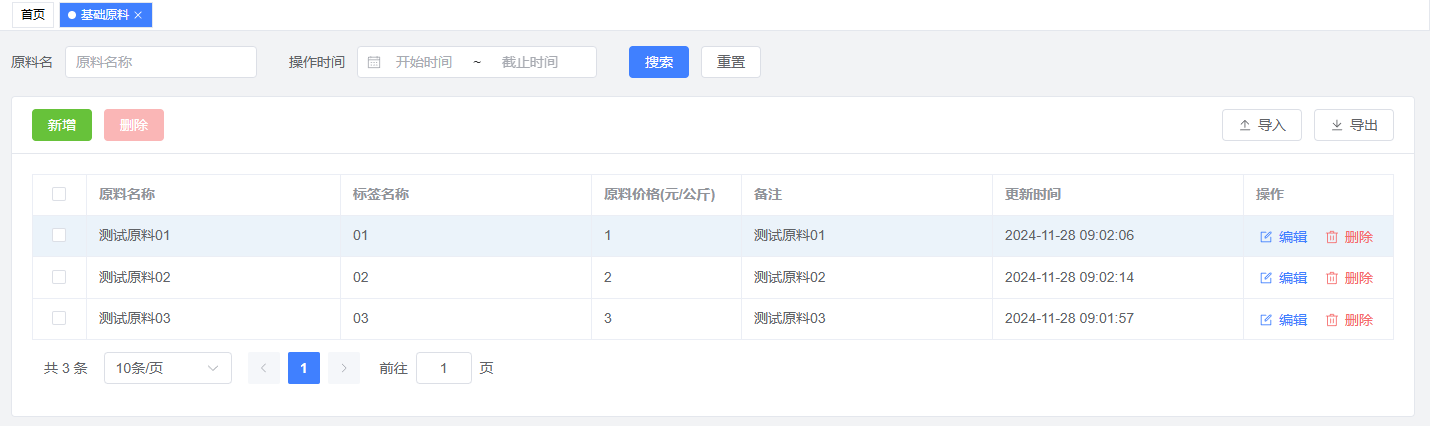
- View material information: including material name, label name, material price, notes, and update time
- Edit material information: support modification of various material details
- Delete material information: support single or batch deletion of materials
- Real-time updates: changes are displayed immediately
Operation Guide
View Material Information
- Enter the Basic Materials page to view all material information
- Information is displayed in a table format, including material name, label name, material price, and other fields
Edit Material Information
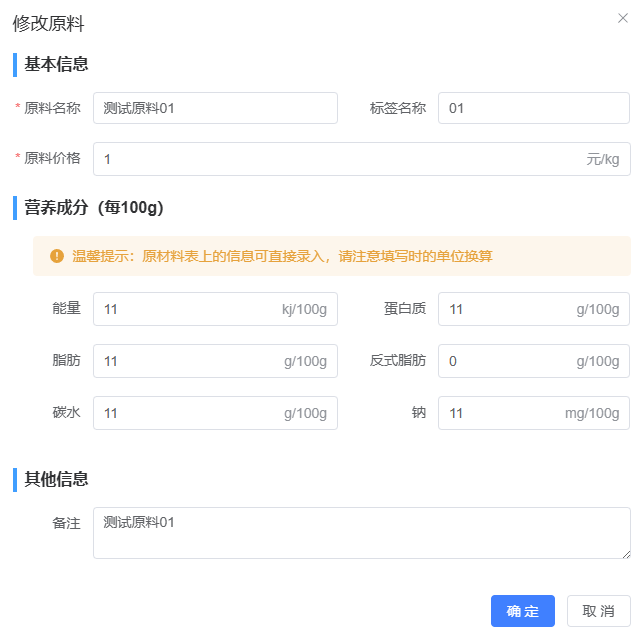
- Click the "Edit" button in the corresponding material row
- Modify information in the pop-up edit window
- Click "Save" to submit changes
Delete Material Information
- Click the "Delete" button in the corresponding material row
- Click "Confirm" in the confirmation dialog
- For batch deletion, select multiple materials and click the "Batch Delete" button
Operation Tips
- Material name and price are required fields
- Label name is optional but recommended for better organization
- All modifications can be previewed before saving
- Deletion operations cannot be undone, please proceed with caution
2. Import and Export
Feature Description
- Import material information: support Excel file import
- Export material information: export data to Excel format
- Batch processing: efficiently handle multiple materials
Operation Guide
Import Materials
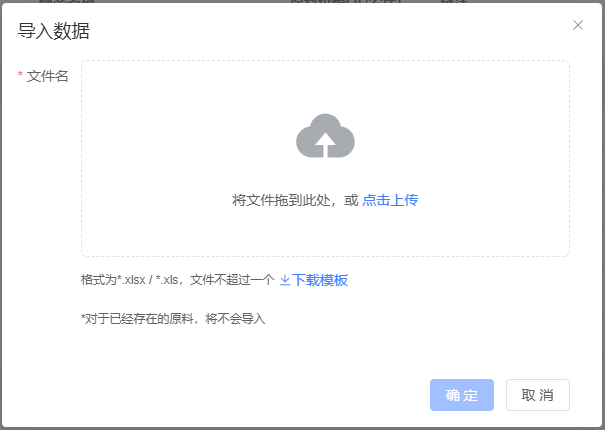
- Click the "Import" button
- Select the Excel file containing material information
- Confirm the import in the preview window
Export Materials
- Click the "Export" button
- Select export format and options
- Save the exported file to your computer
Notes
- Ensure the import file follows the required format
- Check the data accuracy after import
- Back up important data before batch operations
Common Issues
Q1: Why can't I import materials?
A1: Please check:
- File format is correct (Excel format)
- Required fields are complete
- Network connection is stable
Q2: How to modify multiple materials at once?
A2: Currently, batch modification is not supported. You need to edit materials one by one.
Q3: Why can't I see some materials?
A3: This might be due to:
- Insufficient viewing permissions
- Materials have been deleted
- Search filter is active